Why a Lead Magnet + Opt‑in Matters (and What Trips People Up)
A lead magnet is the piece of content you give away in exchange for a visitor’s email address. Done right, it turns casual browsers into engaged prospects and fuels your nurture sequence. Most creators stumble at two points: the magnet itself feels generic, and the opt‑in form feels like a hard sell. The result is a high bounce rate and a list full of uninterested contacts.
Step by Step
- Identify a single, urgent problem
Scan your audience’s comments, forum threads, or support tickets. Pick the problem that appears most often and that can be solved in 5‑10 minutes of reading. Example: “How to format a spreadsheet for quarterly reporting.”
- Choose a format that matches the problem
If the solution is a checklist, deliver a PDF checklist. If it’s a process, a short guide or cheat sheet works better. The format should be instantly consumable on a phone or laptop.
- Write a headline that promises a concrete outcome
Use a “how to” or “X‑step” structure and include a measurable benefit.
Bad: “Improve Your Spreadsheet Skills”
Good: “Create a Quarterly Report Spreadsheet in 7 Minutes – No Formulas Required”
- Draft the core content – 800‑1,200 words max
- Open with a one‑sentence empathy statement (“You’re tired of spending hours on reports…”).
- Deliver the solution step‑by‑step, using numbered lists, bold headings, and screenshots (or placeholders for them).
- End with a quick “next step” that nudges the reader toward your email series (e.g., “Want a deeper dive? Subscribe for weekly templates.”).
- Design a clean, brand‑consistent PDF
- Use your primary color for headings, a sans‑serif font for body text, and leave generous margins.
- Include a one‑line footer with your logo and a tiny call‑to‑action (“Get more templates →”).
- Export at 72 dpi for fast download; keep the file under 2 MB.
- Create the opt‑in form
- Ask only for the email address (name is optional).
- Place the form above the fold on the landing page, next to a brief description of the magnet.
- Use a single CTA button with action‑oriented copy (“Send Me the Checklist”).
- Set up the delivery automation
- After the visitor submits the form, trigger an immediate email containing a download link.
- In the same email, include a short teaser for the next piece of content (“Tomorrow you’ll learn how to automate data refreshes”).
- Test the flow on a personal address to confirm the link works and the email lands in the inbox, not the spam folder.
A Simple Structure to Follow
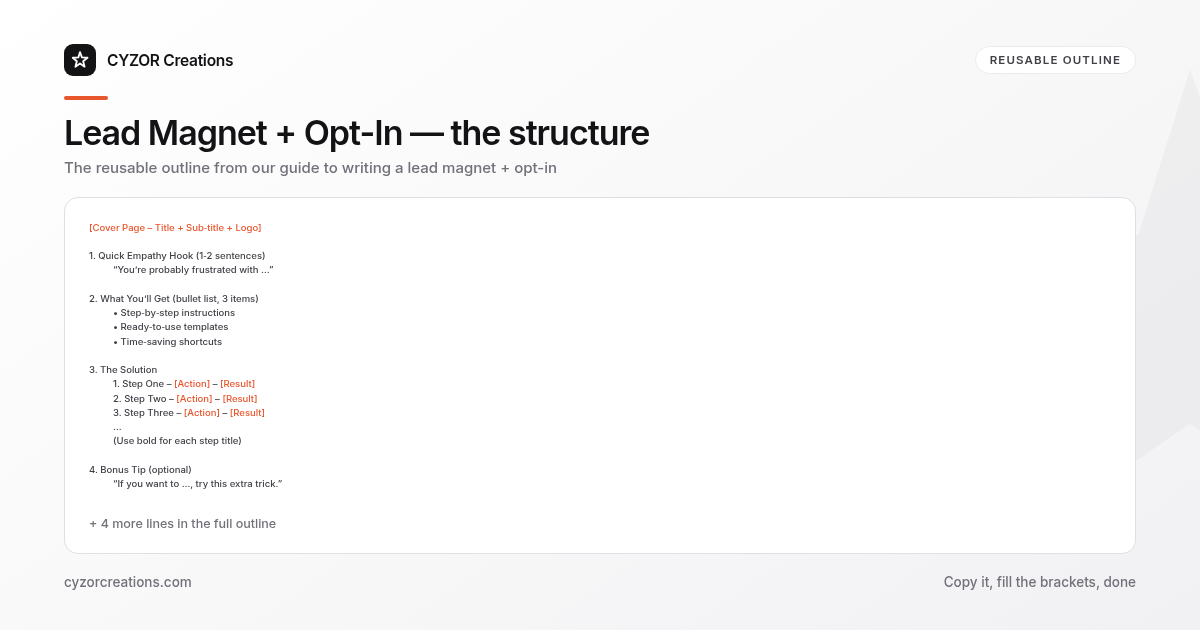
Below is a reusable outline you can copy‑paste into a new document. Replace the bracketed placeholders with your own copy.
[Cover Page – Title + Sub‑title + Logo]

1. Quick Empathy Hook (1‑2 sentences)
 “You’re probably frustrated with …”

2. What You’ll Get (bullet list, 3 items)
 • Step‑by‑step instructions
 • Ready‑to‑use templates
 • Time‑saving shortcuts

3. The Solution
 1. Step One – [Action] – [Result]
 2. Step Two – [Action] – [Result]
 3. Step Three – [Action] – [Result]
 …
 (Use bold for each step title)

4. Bonus Tip (optional)
 “If you want to …, try this extra trick.”

5. Next Action
 “Ready for more? Subscribe for weekly deep‑dive guides.”

[Footer – Small logo + URL + “Download your next template here →”]
Save the outline as a template file; each new magnet only requires swapping the problem, steps, and visuals.
Common Mistakes to Avoid
- Overloading with information – A magnet that tries to be a complete course loses focus; keep it to one actionable outcome.
- Vague promises – “Improve your workflow” is meaningless without a measurable result.
- Heavy branding on the front page – The magnet should feel like a gift, not a sales brochure.
- Requiring too many fields – Every extra field drops conversion rates; stick to email only.
- Broken download links – Test the link on multiple devices; a 404 kills credibility instantly.
A Short Example
> Create a Quarterly Report Spreadsheet in 7 Minutes – No Formulas Required
>
> You’re tired of spending hours tweaking numbers for each quarter. This cheat sheet shows you how to set up a clean, printable report in under ten minutes.
>
> Step 1 – Set Up the Header
> Open a new sheet, merge cells A1:G1, and type “Quarterly Sales Report – Q2 2024”. Apply a bold 14‑pt font and a light gray fill.
>
> Step 2 – Insert a Table
> Highlight A3:G12, choose “Insert → Table”. The table automatically adds filter arrows; you’ll use these to sort by region.
>
> Step 3 – Add a Totals Row
> In cell G12, type =SUM(G4:G11). Format the cell as currency and bold the row.
>
> Bonus: To make the report printable, go to Page Layout → Print Area → Set Print Area → A1:G12.
>
> Next Action – Want a ready‑made template? Subscribe and receive a downloadable version plus a weekly tip on automating data refreshes.
Pro Tips
- Add a micro‑video thumbnail – A 5‑second looping GIF of the finished spreadsheet can lift click-through.
- Use a double‑opt‑in only for high‑value lists – For a simple cheat sheet, a single confirmation email is sufficient; the extra step can drop conversions.
- Refresh the magnet quarterly – Update data points, screenshots, and any date‑specific references to keep the resource feeling current.
- Track the “download‑to‑open” ratio – Embed a tiny invisible pixel in the PDF (or use a tracked link) to see how many recipients actually open the magnet; low rates indicate a mismatch between headline promise and content.
Follow these steps, reuse the template, and avoid the pitfalls, and you’ll start building a list of engaged prospects who see your lead magnet as a genuine solution—not a sales ploy.